User Interface
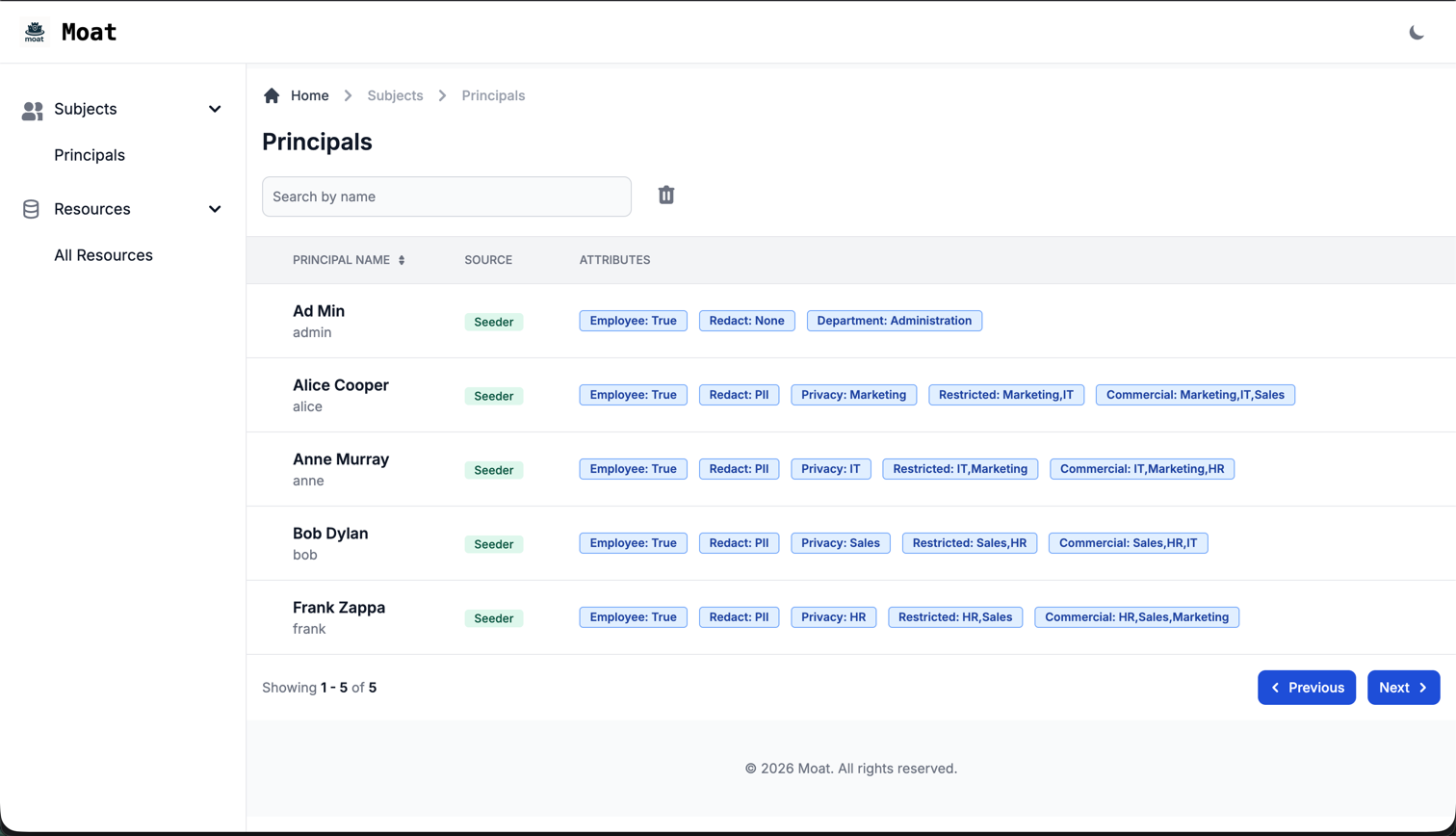
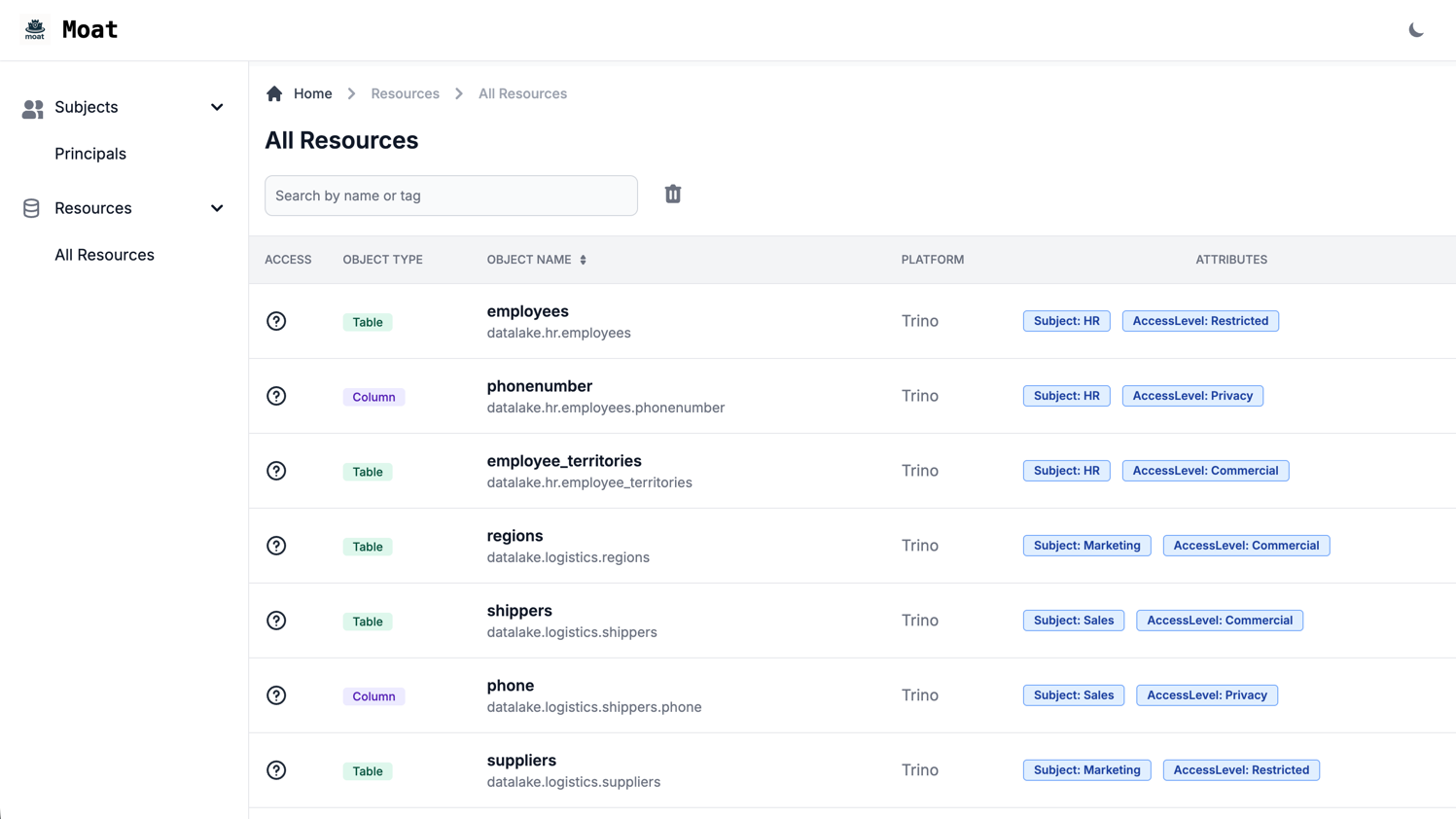
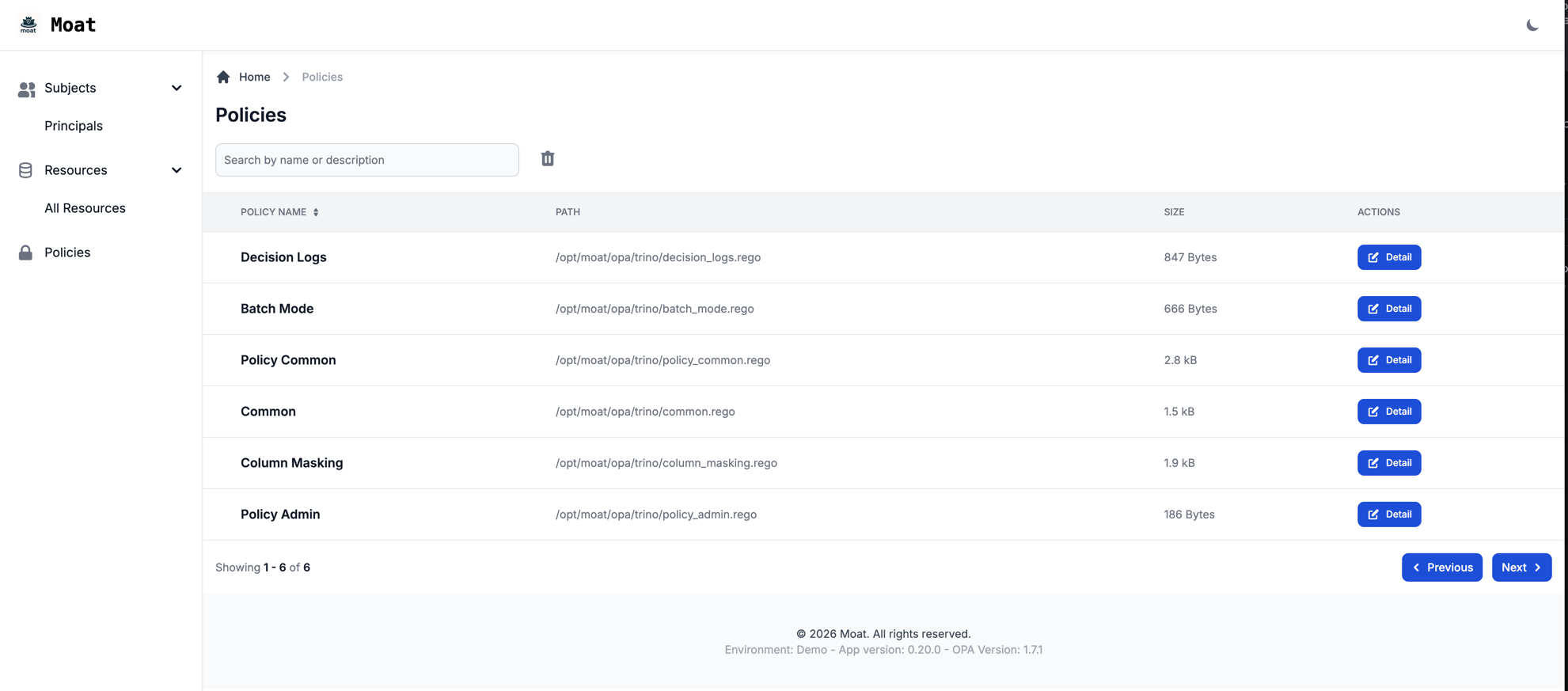
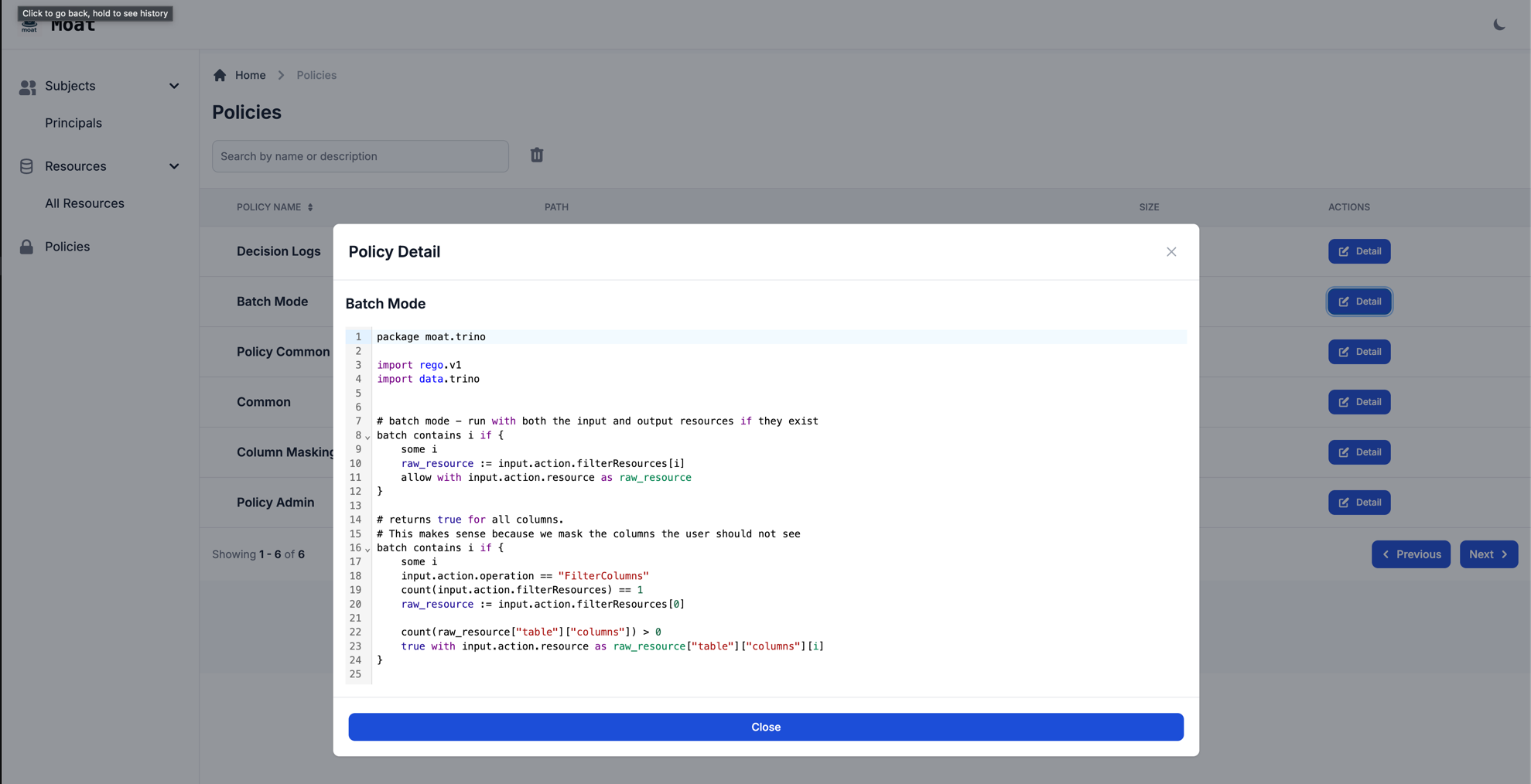
Moat includes a read-only user interface providing visualisation, search, filtering and CSV export for the principals and resources known to Moat.
As the interface is read-only, no authentication is currently provided for it. If your use case requires auth, please raise an issue on github for consideration
Principals View
The search box matches on user_name, first_name, last_name, email and on
attribute keys and values. Several terms can be given, separated by spaces or commas -
a principal must match every term to be listed.
Resources View
The search box matches on fq_name and on attribute keys and values.
Policies View
Advanced Filtering
Both the principals and resources views carry a Filters button next to the search box. It opens a panel of facets built from the data currently in Moat:
| View | Facets |
|---|---|
| Principals | Source, Status (active/inactive), Attribute key/value |
| Resources | Platform, Object type, Status (active/inactive), Attribute key/value |
Filter semantics:
- Values selected within one facet are OR'd - ticking two platforms widens the result set.
- Different facets are AND'ed - a platform and an object type must both match.
- Attribute filters are listed one per row under Attribute, each removable on its own, and a row is added by picking an attribute and then one of its values. Every row has to match, so each one added narrows the result set - including two rows on the same attribute, which returns the records carrying both values rather than either. A record may satisfy the rows from different attribute entries; they do not have to sit on one. There is no operator to set: every row counts.
- A multi valued attribute is filtered one value at a time. An attribute stored as
Domain = 123,321,431is offered in the value dropdown as123,321and431separately, and selecting321matches the record. The whole joined string is never offered as a value. The row itself still displays the attribute as stored.
Applied filters appear as chips beneath the search box and can be removed individually, or all at once with Reset filters. The filter panel, the search box, the column sort and the pagination controls all post the same query state, so they compose freely.
CSV Download
The Download CSV button exports the current view. The count on the button is the number of rows the export will contain.
The download carries exactly the filters applied in the UI - search term, facets, attribute filters and sort order. Pagination is deliberately not applied: the CSV contains every matching row, not just the page on screen.
Because the link is a plain URL, it can also be scripted:
# every inactive LDAP principal in the finance department
curl -o principals.csv \
  'http://localhost:8000/principals/download?source_type=ldap&active=false&attributes=department:finance'

# every trino table tagged AccessLevel=Commercial
curl -o resources.csv \
  'http://localhost:8000/resources/download?platform=trino&object_type=table&attributes=AccessLevel:Commercial'
The attributes parameter takes key:value and may be repeated. active accepts
any (the default), true or false.
Working with the tables
URL state
Filters, search term, sort order and page are all reflected in the address bar. A filtered view can therefore be bookmarked, shared with a colleague, or reopened with the browser's back button, and a refresh returns exactly the same rows.
Opening such a URL directly serves the full page; navigating to it from inside the app swaps in just the table. Both paths end up in the same state.
Keyboard
| Key | Action |
|---|---|
/ |
Focus the search box |
Esc |
Clear the search box, then unfocus it |
Rows per page and density
The table footer carries a rows-per-page selector (10 / 20 / 50 / 100) and a density toggle that switches between comfortable and compact rows. Density is remembered in the browser, so it persists across views and sessions; rows per page is part of the URL state.
Attribute pills
Attribute pills in the principals and resources tables are clickable - selecting one applies it as an attribute filter on that view. Clicking a second value of the same attribute widens the result set; clicking a different attribute narrows it.
Row detail
The Detail button on a row opens a drawer on the right rather than a modal, so the filtered list stays visible behind it. For a principal the drawer shows its identity, source, status, attributes and full attribute-change history.
Loading and empty states
Table requests dim the table and run a progress bar at the top of the page. On first paint, before any query has returned, skeleton rows are shown rather than a flash of "no results".
When a table is empty the reason is distinguished: "no X yet" when nothing has been ingested, versus "no X match these filters" - with a Clear filters button - when the filters excluded everything.